
Timeline and patterns
Arrange sounds into music and scenes.
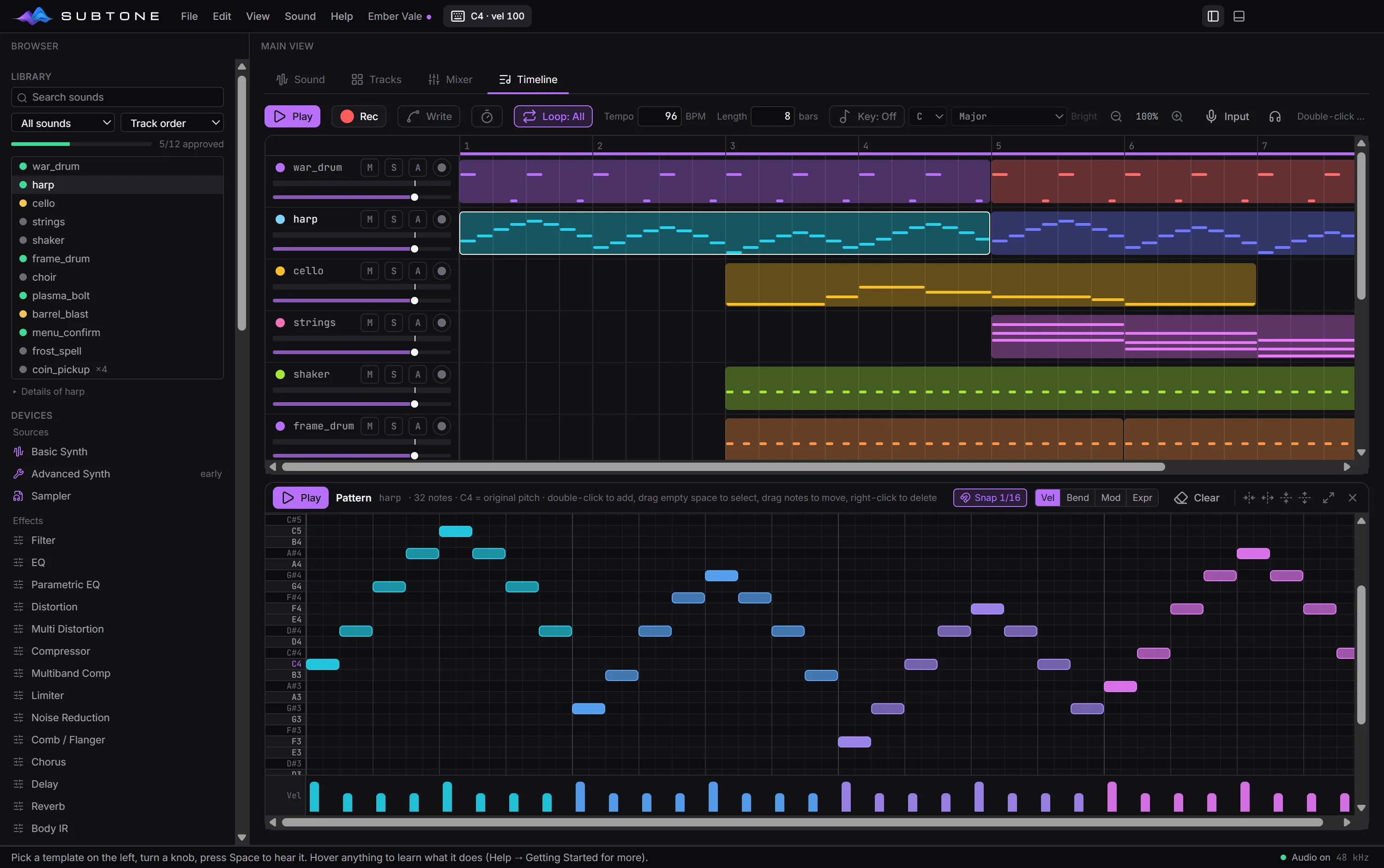
Timeline
Press 4. Double-click a row to add a pattern, and double-click a pattern to edit it. Drag patterns to move them, also to another track, and drag an edge to resize. Right-click for more. Ctrl+D duplicates and Delete removes.
Click the bar numbers to play from there, drag to select a range, and scroll there to zoom.
Each track’s header has mute, solo, automation and record buttons, and a level meter right above its volume slider. Click the colour dot to choose the track’s colour, and drag the header’s bottom edge to make the track taller.
Pattern editor
Double-click to add a note, drag notes to move them, drag empty space to select several and right-click to delete. C4 plays the sound at its original pitch. Below the notes are lanes for velocity, bend, mod and expression. Notes and patterns can have colours.
Project key
Choose a key and scale above the timeline. Notes outside it are marked and still allowed, and you can fit them to the key.
Automation
Press A on a track and choose a knob to automate it per pattern, or the track’s volume over the whole timeline. Click to add points, drag them to move them, Alt-drag between two to bend the curve and right-click to delete one. Or switch on Write, play, and turn the knob.
Metronome and loop
The metronome clicks while the timeline plays. Loop everything or a selected region.