
Exporting
Finished files, named and matched.
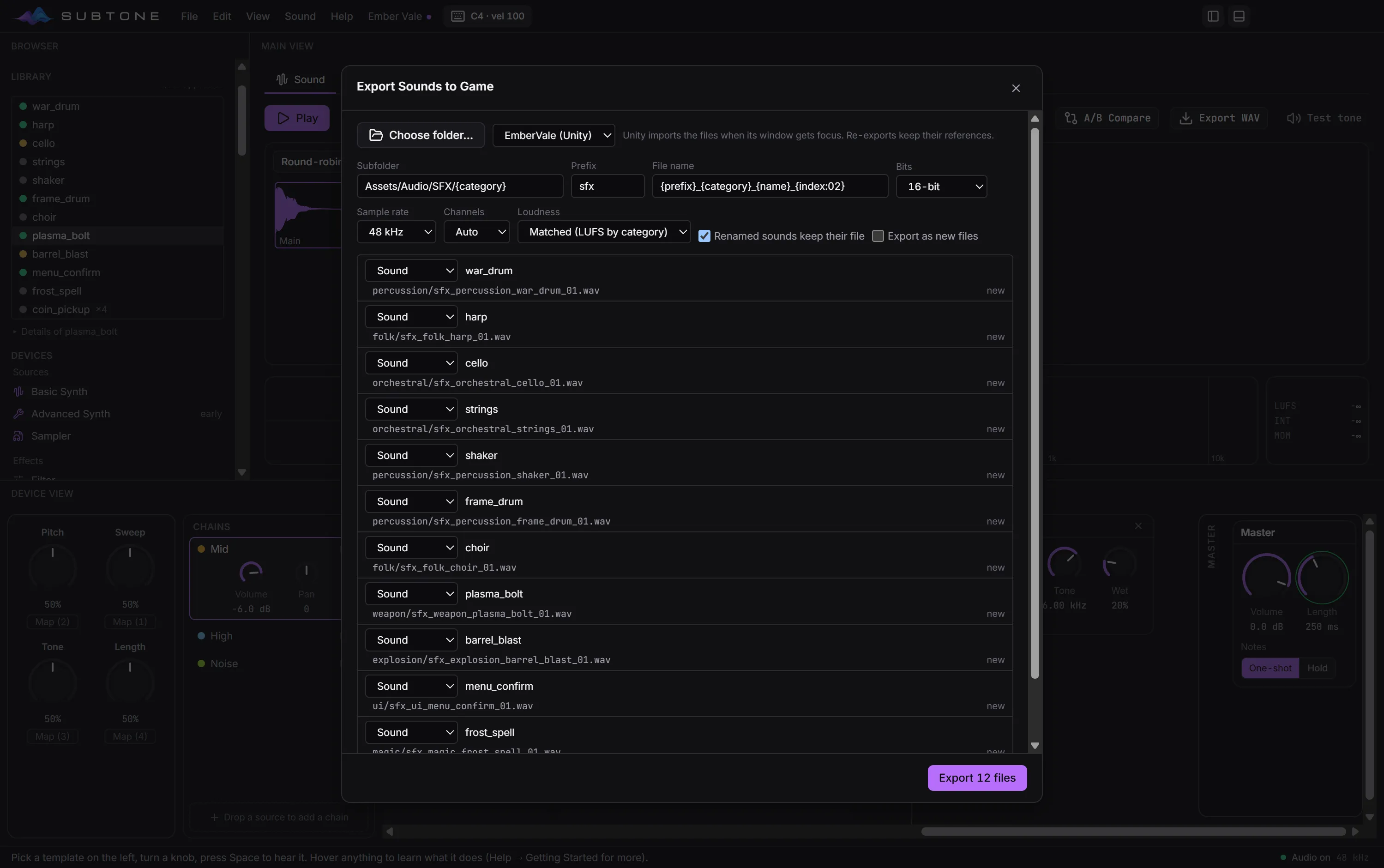
To a game project
Press Ctrl+Alt+E and choose the project’s folder. Subtone recognises the engine and suggests:
| Engine | Folder | Format |
|---|---|---|
| Unity | Assets/Audio/SFX/{category} |
16-bit, 48 kHz |
| Godot | audio/sfx/{category} |
16-bit, 44.1 kHz |
| Unreal | SourceAudio/{category} |
16-bit, 48 kHz |
| Other | {category} |
24-bit, 48 kHz |
Unity and Godot import the files when their window gets focus. For Unreal, drag them into the Content Browser once, or add the folder to Auto Reimport in the Editor Preferences.
File names
The pattern can use {prefix}, {category}, {name}, {variation}, {index:02}, {bpm}, {key} and {date}. The default gives names like sfx_pickup_coin_01.wav.
Loudness
Matched brings each sound to the loudness of its category: −16 LUFS, −20 for UI and −14 for stingers. Peak normalizes to −1 dB, and Off leaves the level alone.
Per sound
In the Library details a sound can have its own channels, loudness and loop. A loop is blended so it repeats without a click, and carries loop points in the file.
Exporting again
The list shows which files are new, will be replaced or are unchanged. Subtone only replaces files it wrote for that very sound. Clean up finds files of sounds you have deleted and moves them to the recycle bin if you agree.
One sound or the timeline
Export WAV on the Sound tab numbers its files and never overwrites. Ctrl+E exports the whole timeline, Ctrl+Shift+E the selection.